
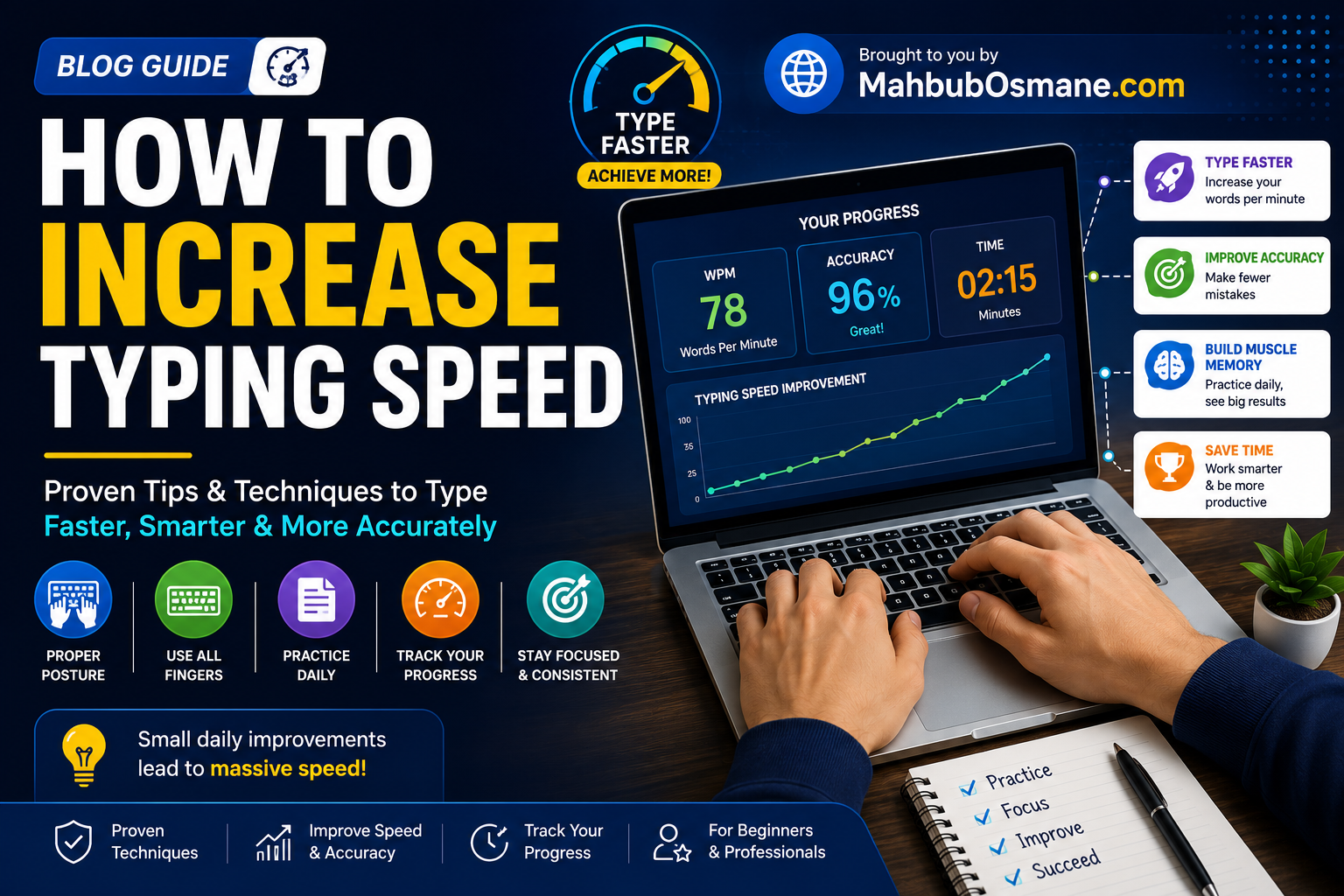
How To Increase Typing Speed
How much of your day is spent behind a keyboard?
Whether you are a software developer, a content creator, a virtual assistant, a student, or a business professional, the keyboard is the primary gateway between your thoughts and the digital world. Yet, most people treat typing as a secondary, passive skill. They “hunt and peck” with two to four fingers, constantly glancing down at the keys and up at the screen, operating at an average speed of 35 to 40 Words Per Minute (WPM).
Now, imagine doubling or tripling that speed.
If you increase your typing speed from 40 WPM to 80 WPM, you literally cut your typing time in half. Over a year of daily computer use, this modest upgrade saves you upwards of 100 to 200 hours of pure, unadulterated time. That is the equivalent of getting more than two full weeks of vacation back, simply by training your fingers to move more efficiently.
This comprehensive guide is designed to take you from a frustrated “hunt-and-peck” typist to a high-speed touch-typing master. We will break down the physical mechanics, psychological strategies, gear choices, and deliberate practice routines required to hit 80, 100, or even 120+ WPM.
Why Typing Speed is a Life-Changing Skill
Before diving into the “how,” let’s look at the “why.” Typing quickly and accurately isn’t just a cool party trick or a resume bullet point. It changes how your brain processes information.
Eliminating the Cognitive Bottleneck
When you have to think about where your fingers are going, your brain is forced to multitask. It splits its cognitive energy between what you want to write and how to physically execute it.
Once you learn to touch type—typing entirely by muscle memory without looking at the keyboard—the physical act of typing becomes completely subconscious. Your thoughts flow directly onto the screen. This elimination of cognitive friction allows you to write cleaner code, draft more compelling emails, and capture creative ideas before they fade.
The Math of Speed
Let’s look at the numbers. Consider a moderate professional who writes about 2,000 words a day (emails, reports, chat messages, code comments).
| Metric | Average Typist (40 WPM) | Fast Typist (80 WPM) | Elite Typist (120 WPM) |
| Time spent per day | 50 minutes | 25 minutes | 16.6 minutes |
| Time spent per year | ~304 hours | ~152 hours | ~101 hours |
| Annual Time Saved | Baseline | 152 Hours Saved | 203 Hours Saved |
By simply moving from average to fast, you rescue nearly 6 full days of time per year.
The Golden Rule: Accuracy First, Speed Second
The absolute biggest mistake beginners make is trying to type fast too early. They rush through practice sessions, flubbing words, and hitting the backspace key repeatedly.
Speed is a natural byproduct of accuracy, not the other way around.
When you make a mistake, you don’t just lose time typing the wrong letter. You have to:
-
Register the mistake visually or mentally.
-
Reach for the backspace key.
-
Delete the mistake (sometimes deleting several correct letters in the process).
-
Re-type the correct letters.
A single typo can drop your real-time WPM for that sentence by 30% to 50%. Your goal during practice should always be 98% accuracy or higher. If your accuracy drops below 95%, you are moving too fast. Slow down until you can type the passage flawlessly. Speed up only when the movements feel effortless.
Ergonomics and Posture: The Foundation of Speed
You cannot type quickly or sustainably if your body is in pain. Poor ergonomics leads to muscle fatigue, slow reaction times, and repetitive strain injuries (RSI) like Carpal Tunnel Syndrome. Before your fingers touch the keys, your posture must be locked in.
To build a sustainable posture, follow these foundational rules:
-
The 90-Degree Rule: Your elbows, hips, and knees should all be bent at approximately a 90-degree angle. Keep your feet flat on the floor.
-
Monitor Height: The top of your screen should be at or slightly below eye level. This prevents neck strain from looking down.
-
Wrist Position (The Golden Rule of Ergonomics): Your wrists should never rest on the desk or a wrist rest while you are actively typing. Wrist rests are for resting between typing sessions. When typing, your wrists should hover neutrally, parallel to the keyboard. Bending your wrists upward or resting them on a hard edge pinches the tendons and slows finger agility.
-
Relax Your Shoulders: Keep your shoulders dropped and relaxed. Tension in your neck and shoulders restricts blood flow to your forearms and fingers.
The Anatomy of Touch Typing: Home Row Mastery
The core mechanism of touch typing is anchoring your hands to a central baseline called the Home Row. Every finger is assigned a specific column of keys, and after striking any key, the finger must immediately return to its resting position on the Home Row.
The Anchor Points
Look closely at your physical keyboard. On the F and J keys, you will feel tiny, raised plastic bumps. These are tactile anchors.
-
Place your left index finger on the F key.
-
Place your right index finger on the J key.
-
Let your remaining fingers rest naturally on the adjacent keys:
-
Left Hand: A (pinky), S (ring), D (middle), F (index)
-
Right Hand: J (index), K (middle), L (ring), ; (pinky)
-
Thumbs: Both thumbs hover over the Spacebar.
-
By feeling those physical bumps on F and J, you can position your hands perfectly without ever looking down.
Finger Mapping Boundaries
To transition away from hunt-and-peck, you must memorize which finger owns which keys. Here is the standard mapping layout:
| Finger | Left-Hand Key Assignments | Right-Hand Key Assignments |
| Pinky | ~1QAZShiftCtrl |
p;/[]'EnterBackSpace |
| Ring | 2WSX |
9OL. |
| Middle | 3EDC |
8IK, |
| Index | 45RTFGVB |
67YUHJNM |
| Thumb | Spacebar (Left option) | Spacebar (Right option – preferred) |
The “Return to Home” Habit
Every time you reach up to hit T or down to hit V, the striking finger must instantly snap back to its home key. This muscle memory loop ensures that your hands never get “lost” on the board.
Phase-by-Phase Training: From 20 to 100+ WPM
Reaching high typing speeds is a journey divided into clear developmental stages. Attempting advanced drills too early can stall your progress. Find your current bracket below and focus on the corresponding strategies.
Phase A: The Beginner (0 to 30 WPM)
At this stage, your main hurdle is the physical urge to look at your hands.
-
Your Mission: Build absolute muscle memory for key locations.
-
The Strategy: Wrap a dish towel over your hands and the keyboard, or buy a set of blank keycaps. Forcing yourself to type blind is uncomfortable at first, but it forces your brain to build tactile pathways instead of visual ones.
-
Drill Focus: Focus entirely on isolated key pairs (e.g., repeating
fandjpatterns, then gradually expanding to the top and bottom rows). Do not worry about speed metrics.
Phase B: The Intermediate (30 to 60 WPM)
You know where the keys are, but you still experience slight mental pauses before reaching for less common letters like Q, X, Z, or punctuation marks.
-
Your Mission: Smooth out pauses and eliminate typing stutter.
-
The Strategy: Focus on Rhythm. Try to maintain a steady metronome-like beat while typing. Speed up your slower fingers to match the fast ones, rather than bursting through easy words and stalling on hard ones.
-
Drill Focus: Shift your gaze slightly ahead. Do not read the letter you are currently typing; read one or two words ahead in the text. This allows your brain to pre-program the finger movements before they strike.
Phase C: The Advanced (60 to 90 WPM)
You are now faster than the average computer user. To break into the next bracket, you need to transition from typing letter-by-letter to typing word chunks.
-
Your Mission: Learn to read and execute patterns, not individual symbols.
-
The Strategy: When you see the word “the,” your fingers shouldn’t think T-H-E. They should execute a single, fluid triple-tap gesture.
-
Drill Focus: Practice common prefixes (
un-,re-,pro-,con-) and suffixes (-ing,-tion,-ment,-ness). Your fingers should roll through these combinations in a single motion.
Phase D: The Elite (90 to 120+ WPM)
At this tier, physical limitations and micro-tensions are your bottlenecks. You must optimize every micro-movement.
-
Your Mission: Minimize finger travel and travel tension.
-
The Strategy: Keep your fingers curved like you are holding a tennis ball. Flattish fingers have to travel farther to reach the top row. Keep your key strikes light; bottoming out keys with excessive force wastes energy and slows down your upward rebound.
-
Drill Focus: Practice on diverse text sets, including code, numbers, and historical prose with complex, archaic vocabulary.
Curated Toolkit: The Best Typing Practice Platforms
Not all typing websites are created equal. Different platforms serve different developmental goals. Here is a curated selection of the best tools available today, categorised by what they do best:
Best for Beginners: Keybr.com
-
How it works: Keybr uses a smart, generative algorithm rather than static texts. It introduces keys one by one. It tracks your speed and error rate for each individual letter. If it detects you are slow or inaccurate with the letter
C, it will automatically generate pseudo-words heavily featuringCuntil your muscle memory catches up. -
Best for: Transitioning from hunt-and-peck to complete touch typing.
Best for Intermediate & Advanced: Monkeytype.com
-
How it works: Monkeytype is the gold standard of modern typing apps. It is highly customizable, beautiful, and ad-free. You can test your speed on the most common 200 English words, or scale up to English 1k, 5k, or even 10k to expand your vocabulary muscle memory.
-
Key feature: Its post-test analytics page shows you a line graph of your raw speed, real WPM, and accuracy, pinpointing exactly where you stumbled.
Best for Real-World Practice: Typeracer.com
-
How it works: This gamified platform pits you against other live typists in a race. You type actual quotes from books, movies, and historical speeches.
-
Best for: Learning to handle typing pressure while dealing with realistic text layouts containing punctuation, capital letters, and numbers.
The Role of Hardware: Keyboards, Switches, and Layouts
While you can type 100 WPM on a cheap membrane laptop keyboard, upgrading your physical gear can provide better tactile feedback, comfort, and fun.
Mechanical Keyboards vs. Membrane Keyboards
Most standard office keyboards use membrane switches—a rubber dome layer under plastic keys. They often feel mushy, requiring you to press the key all the way down (bottoming out) to register a strike.
Mechanical keyboards use individual physical switches under every key. These switches register a keypress midway through the keystroke, meaning you don’t have to press them hard. This reduces hand fatigue and allows for lighter, faster finger movements.
Understanding Switch Types
If you decide to explore mechanical keyboards, switches generally fall into three categories:
  [Linear Switches]   ---> Smooth, silent glide (Great for gaming and quiet typing)
  [Tactile Switches]  ---> Gentle tactile bump midway (Highly recommended for speed and accuracy)
  [Clicky Switches]   ---> Sharp tactile bump + loud click (Satisfying, but loud in shared offices)
For speed typing, tactile switches are generally preferred because they give your fingers a physical confirmation the moment a key registers, allowing you to move to the next key without wasting downward energy.
Alternative Keyboard Layouts
The standard keyboard layout is QWERTY, designed in the 1870s for mechanical typewriters. QWERTY was built to separate common letter pairs to prevent mechanical arms from jamming. It is actually highly inefficient; it forces your fingers to make massive jumps between rows for basic words.
If you are starting from scratch or want to optimize your typing speed over months of dedicated retraining, consider an alternative layout:
-
Dvorak: Puts the most common letters (including all vowels) directly on the Home Row. This minimizes finger movement by up to 60% compared to QWERTY.
-
Colemak: A modern alternative designed for computers. It keeps 17 of the QWERTY keys in the same place (so keyboard shortcuts like Ctrl+C and Ctrl+V remain easy to use) but dramatically optimizes Home Row efficiency.
Advanced Strategies for Breaking Through Plateaus
Almost everyone training to type faster will hit a plateau—a period where, despite practicing daily, their speed hovers around a specific number (like 60 or 80 WPM) for weeks. Use these advanced mental adjustments to smash through those barriers:
The “Slow Down to Speed Up” Method
If you are stuck at 75 WPM with 94% accuracy, force yourself to spend three days typing at a strict, slow, and rhythmic 50 WPM. Focus exclusively on hitting 100% accuracy. Make the physical movements feel completely effortless and calm. By intentionally lowering the stakes and focusing on clean movements, you clean up the “noise” in your muscle memory. When you try for speed again, you will often find your plateau has cleared.
Master Keyboard Shortcuts
You cannot build real-world typing speed if you constantly take your hands off the keyboard to grab your mouse to fix errors or move paragraphs. Memorize these universal keyboard shortcuts to keep your hands anchored:
-
Ctrl + Backspace (Windows) / Option + Delete (Mac): Deletes an entire word at once. This is much faster than tapping backspace five times.
-
Ctrl + Left/Right Arrow (Windows) / Option + Left/Right Arrow (Mac): Jumps the cursor one entire word forward or backward.
-
Shift + Home/End: Selects the entire line from the cursor position to the start or end.
Your 30-Day Typing Action Plan
To turn this guide into action, here is a simple, structured 30-day practice plan that requires only 15 minutes a day.
Week 1: Build the Foundation
-
Daily Commitment: 15 minutes on Keybr.com.
-
Goal: Learn the correct finger mapping for all letters.
-
Metric: Keep your eyes off the keyboard. Do not worry about speed; focus entirely on keeping your fingers on the Home Row.
Week 2: Establish Rhythm
-
Daily Commitment: 10 minutes on Monkeytype.com (settings: English 200, time 30s) + 5 minutes on Keybr.com to clean up weak keys.
-
Goal: Achieve a steady, uninterrupted typing flow.
-
Metric: Maintain an accuracy rate of 97% or higher.
Week 3: Word Chunking
-
Daily Commitment: 15 minutes on Monkeytype.com (expand settings to “English 1k” and toggle punctuation on).
-
Goal: Transition from typing letter-by-letter to executing full words as muscle memory gestures.
-
Metric: Try to naturally read ahead by one or two words.
Week 4: Real-World Testing
-
Daily Commitment: 10 minutes on Typeracer.com + 5 minutes on Monkeytype.com (with numbers and capitals enabled).
-
Goal: Bring your new muscle memory into real-world scenarios with punctuation and external pacing pressure.
-
Metric: Watch your real-world WPM climb.
The Takeaway
Learning to touch type at a high speed is one of the highest-yield investments you can make in your digital life. It is a physical skill that, once learned, stays with you forever.
Be patient with yourself. During the first week or two, your typing speed might actually decrease as you break bad habits and build proper muscle memory. This is completely normal. Push through the temporary dip, stick to the 15-minute daily routine, and enjoy the effortless speed and freedom that comes with being a master of your keyboard.
Happy typing! If you have any questions or want to share your progress, drop your current WPM in the comments below and tell us which layout or keyboard you are currently using.
Boost Your Speed. Scale Your Business. Delegate to the Experts.
Optimizing your typing speed is a powerful way to reclaim your personal hours. But as a business leader, the ultimate multiplier of your time isn’t typing faster—it’s delegating your digital operations to high-speed, world-class experts.
While you focus on high-level strategy and growth, let our elite team at MahbubOsmane.com handle your heavy digital lifting.
We serve businesses looking to scale rapidly across Saudi Arabia, UAE, Qatar, Kuwait, USA, UK, Canada, Germany, Lithuania, and Bangladesh.
Why Partner with MahbubOsmane.com?
We don’t just work fast; we deliver elite, enterprise-grade results. Our track record speaks for itself:
-
700+ Completed Jobs on Upwork with flawless 5-star feedback.
-
Verified and active on Hubstaff Talent for seamless global collaboration.
-
A fully integrated digital agency offering rapid-execution, high-performance solutions.
Our Suite of Professional Services:
-
Professional SEO: Dominate search engine results pages (SERPs) and capture high-intent organic traffic.
-
AdOps (Advertising Operations): Maximize your ROI with precision-targeted PPC, social media, and programmatic ad campaigns.
-
High-Conversion Content Writing: Engaging, SEO-optimized copy written by industry-focused specialists.
-
Web Development & Design: Fast, responsive, and secure custom websites built to convert visitors into clients.
-
Graphic Design & Video Editing: Striking visual assets and high-impact video content tailored for modern social algorithms.
-
Full-Scale Digital Marketing: End-to-end campaigns engineered to scale your brand internationally.
Reach Out Today to Scale Your Operations
Get in touch with our team directly. Click one of the buttons below to initiate an instant chat on WhatsApp (available on all lines):
-
Saudi Arabia Office Lines: +966 54 948 5900 / +966 55 322 7950
-
Bangladesh Office Line: +880 1716 988953
-
Official Emails: hi@mahbubosmane.com / mahbubosmane@gmail.com
-
Website: www.MahbubOsmane.com
FAQ
What is a good typing speed for professional work?
For most office, data entry, and administration roles, a speed of 50 to 60 Words Per Minute (WPM) is considered the professional standard. If you work in highly text-intensive fields like software development, journalism, transcription, or content creation, hitting 70 to 90+ WPM will drastically improve your day-to-day productivity.
Is it actually possible to learn touch typing if I have used hunt-and-peck for years?
Yes, absolutely. Muscle memory can be rewritten at any age. In fact, experienced “hunt-and-peck” typists often learn touch typing faster because they already have a subconscious familiarity with the general layout of the keyboard. The initial transition requires breaking old habits, which takes deliberate practice for just a few weeks.
Why does my typing speed temporarily drop when I start learning touch typing?
This is a completely normal part of the learning curve. Your brain is transitioning from visual guidance (looking at the keys) to tactile motor memory. Because you are forcing yourself not to look down, your processing speed slows down briefly while the new neural pathways form. Stick with it—your speed will quickly overtake your old method within two to three weeks.
How long does it take to see a noticeable increase in typing speed?
If you practice consistently for 15 minutes every day using proper techniques, you will begin to see a measurable increase in your accuracy and comfort within 14 days. Most dedicated learners can double their typing speed or reach a confident 60 WPM within 30 to 45 days.
Should I focus on speed or accuracy when I first start practicing?
You should focus almost entirely on accuracy. Rushing to build speed creates sloppy muscle memory, forcing you to constantly hit the backspace key, which destroys your real-time WPM. Aim for a consistent accuracy rating of 98% or higher before you attempt to push your fingers to move faster.
Do I really need to use all ten fingers to type fast?
While some unorthodox typists manage to hit high speeds using only a few fingers, utilizing all ten fingers is the only way to maximize your physical efficiency. Ten-finger touch typing distributes the physical workload evenly across both hands, minimizes finger travel distance, and drastically reduces long-term physical fatigue.
What are the physical tactile bumps on the F and J keys for?
Those small, raised ridges are tactile anchor points designed for your index fingers. They allow you to position your hands perfectly on the Home Row without ever having to look down at the keyboard. Whenever your hands leave the keyboard, you can easily slide them back into the proper starting position using only your sense of touch.
Can typing fast cause wrist pain or repetitive strain injuries?
Typing fast with poor form can absolutely cause injuries like Carpal Tunnel Syndrome or tendonitis. However, typing fast with proper ergonomics—keeping your wrists completely neutral and hovering, relaxing your shoulders, and avoiding bottoming out the keys with excessive force—actually reduces physical strain compared to awkward hunt-and-peck movements.
Are mechanical keyboards genuinely better for increasing typing speed?
Mechanical keyboards are highly recommended because they offer crisp, predictable tactile feedback. Unlike mushy membrane keyboards, a mechanical switch registers a keypress halfway through its downward travel. This means your fingers don’t have to push all the way to the bottom of the board, allowing for lighter, faster, and more responsive movements.
Which mechanical keyboard switch type is best suited for typing?
Tactile switches (often referred to as “Brown” switches) are widely considered the best choice for speed typing. They feature a gentle, physical bump at the exact moment the key registers, confirming the strike without making the loud, distracting click characteristic of “Blue” clicky switches.
Is it worth switching from the standard QWERTY layout to Dvorak or Colemak?
If you already type at 70+ WPM on QWERTY, switching requires a massive time investment to retrain your brain. However, if you are starting from scratch or suffer from severe finger fatigue, alternative layouts like Dvorak or Colemak are far more efficient because they place the most frequently used letters directly on the home row.
How does reading ahead help increase typing speed?
When you look only at the exact letter you are striking, your typing becomes stuttered. By shifting your gaze one or two words ahead of your fingers, your brain pre-processes the upcoming letter combinations. This allows your hands to execute fluid, continuous movements without micro-pauses between words.
What is “word chunking” and how do I practice it?
Word chunking is the transition from thinking about individual letters (T-H-E) to executing an entire word as a single muscle-memory gesture. You can practice this by drilling common letter combinations, prefixes (like un-, re-, pre-), and suffixes (like -ing, -tion, -ment) until your fingers roll through them automatically.
Why do I keep hitting a typing speed plateau and how do I break it?
Plateaus occur when your brain maxes out its current processing habits. To break through, try the “slow down to speed up” method: spend a few days typing at a deliberately slow, rhythmic pace with absolute 100% accuracy. Removing the stress of speed clears up muscle memory confusion, allowing you to jump past your old barrier when you speed up again.
Are online typing games effective for actual speed improvement?
Yes, gamified platforms like TypeRacer are excellent for advanced practice because they introduce real-world conditions. Racing against others simulates mild performance pressure and forces you to type unpredictable text blocks featuring varied punctuation, numbers, and capital letters.
How often should I practice to see steady improvements?
Short, daily practice sessions are significantly more effective than long, occasional marathons. Practicing for 15 to 20 minutes every single day keeps your muscle memory sharp and prevents physical fatigue, whereas practicing for two hours straight once a week can lead to strain and diminishing returns.
Should my wrists rest on the desk or a wrist rest while I am typing?
No, your wrists should hover parallel to the keyboard while you are actively typing. Leaning your wrists on a hard desk or a soft wrist rest during typing pinches the tendons in your carpal tunnel and limits your fingers’ range of motion. Wrist rests are strictly designed to support your palms between typing bouts.
How can learning keyboard shortcuts improve my overall text production speed?
Every time you take your hand off the keyboard to move the mouse, locate the cursor, and click, you lose several seconds of momentum. Learning universal shortcuts—like using Ctrl + Backspace to delete entire words or Ctrl + Arrow keys to jump through text—keeps your hands anchored to the home row and dramatically accelerates your real-world editing speed.
External Resources
-
Build Foundational Muscle Memory: Train your fingers to learn the home row entirely by touch with the adaptive learning algorithms on Keybr.
-
Customize Your Speed Drills: Practice word chunking and analyze your raw speed with the highly customizable minimalist interface on Monkeytype.
-
Test Your Real-World Speed: Learn to maintain accuracy under pressure by racing against live typists using real book and movie quotes on TypeRacer.
Internal Resources
-
Dominate the Search Rankings: Drive high-intent organic traffic to your brand with our data-driven strategies on our Professional SEO Services page.
-
Create Engaging Copy: Let our industry specialists take the typing off your hands entirely by visiting our Content Writing Services hub.
-
Maximize Digital Ad ROI: Run highly targeted, high-performance global advertising campaigns managed by our experts through our dedicated AdOps & Digital Marketing Services.
About the Author
Mahbub Osmane is a digital marketing expert who helps businesses build effective online strategies, including selecting and managing the right social media channels for growth. With hands-on experience across platforms and markets, Mahbub shares practical, actionable insights to help businesses connect with their audience and grow their brand presence.
Contact information Email: hi@mahbubosmane.com Website: https://mahbubosmane.com/ Mobile: +966 54 948 5900 (KSA) / +880 1716 988953 (BD) Address: 2282 7284 Al Malawi Southern 1, As Sulimaniyah Dist, Makkah 24236, Saudi Arabia